CNC Software Comparison 2026: Features & Cost — Which CNC Software Is Right for You?
When buying your first desktop CNC, many people focus on machine specs and overlook the software. But CNC software and toolpath strategy can strongly affect whether a job finishes cleanly, how the surface looks, and how long it takes.
Different makers need different tools: beginners want the simplest workflow, woodworkers need fast 2D/2.5D carving, and engineers need CAD/CAM for mechanical and aluminum parts.
This CNC software comparison evaluates each option by Features, Learning Curve, Cost, and Best Use Cases—so you can decide which CNC software is right for you.
Pricing note: the examples below reflect common public pricing/tier structures and may vary by region, promotions, and licensing terms.
How to Choose CNC Software
Choosing CNC software is not about collecting features. It's about matching your projects, the time you can invest in learning, and your upgrade path.
What Do You Want to Make?
Start with what you plan to produce:
Woodworking / Signs / Decorative (CNC routing software use cases)
Mostly 2D/2.5D work: profiles, pockets, V-carving, and inlays, along with the occasional imported 3D model. You want fast setup, repeatable results, and woodworking-focused toolpaths.
Mechanical parts
You care about holes, steps, mating surfaces, fit, and assembly logic. CAD + CAM integration and stronger CAM control become more valuable.
Aluminum (CNC software for aluminum machining)
Success with aluminum depends heavily on toolpaths, feeds/speeds discipline, chip evacuation, and repeatability. Stronger CAM strategies, simulation, and tool management matter more.
Learning Curve
Learning curve determines how quickly you get usable output.
- Beginner-friendly: templates, fewer settings, quick wins
- Intermediate: more setup concepts (tools, work offsets, post processors)
- Professional: higher ceiling, higher complexity
Practical advice: many beginners are better off starting with an easier tool to learn the workflow, then upgrading to advanced CAD/CAM later.
Features
Prioritize what you will actually use:
- 2D carving: profile, pocket, drilling
- 2.5D: V-carve, chamfering, layered operations
- 3D: relief and surface finishing
- CAD + CAM integration: design and toolpaths in one environment
- Toolpath generation: roughing/finishing strategies, simulation, post-processor reliability
In any CNC CAM software comparison, toolpath control, simulation, and post-processor reliability usually matter more than long feature lists.
Cost Level (Free vs Paid CNC Software)
Cost models vary:
- Free: great for learning, often limited by features or license terms
- Subscription: updates included; higher long-term cost
- One-time purchase (perpetual): predictable long-term cost
- Professional licensing: higher cost, broader capability
A practical way to think about free CNC software vs paid: free tools can get you started, but paid tools often pay off through fewer failures, faster setup, and stronger toolpath control—especially as projects become more complex.
CNC Software Comparison (CNC CAM Software Comparison)
Below is a structured CNC CAM software comparison using a consistent format for each tool.
Fusion 360 — CAD + CAM Integrated

Positioning: Integrated CAD + CAM for mechanical parts and advanced maker workflows.
Best For:
- Engineers and product designers building functional prototypes
- Aluminum and mechanical-part makers who need stronger CAM strategies
Key Features:
- CAD modeling (parametric design)
- CAM toolpaths (2.5D–5-axis), simulation, post-processing
- Adaptive-style clearing and advanced machining strategies
Learning Curve: Medium / Advanced
Cost Level:
| Tier | Price | Notes |
|---|---|---|
| Personal (Limited) | Free | Personal use with feature/licensing limits |
| Autodesk Fusion (Standard) | $680/yr | Core CAD/CAM subscription |
| Fusion for Manufacturing | $2,040/yr | Advanced manufacturing & multi-axis tools |
| Fusion for Design | ~$183/mo | Advanced design & modeling tools |
Tier tip: Personal (Free) suits learning and personal projects; Commercial covers commercial use and day-to-day production; the Manufacturing / Design extensions fit users with clear advanced manufacturing or advanced modeling needs (see the official plan page for exact differences).
Summary: Best when you want CAD+CAM in one platform for functional parts and are ready for a more technical workflow.
Official overview (features & workflows)
VCarve — Woodworking & CNC Carving

Positioning: Woodworking-first CNC routing software focused on efficient 2D/2.5D carving and sign workflows.
Best For:
- Woodworkers making furniture parts and decorative projects
- Sign makers and production-style 2.5D carving
Key Features:
- 2D/2.5D workflow optimized for routers
- V-carving, inlays, fluting, molding toolpaths
- 3D model import for toolpathing (import-and-machine approach)
Learning Curve: Beginner–Intermediate
Cost Level:
| Tier | Price | Notes |
|---|---|---|
| Desktop | $349 (one-time) | Perpetual license |
| Pro | $699 (one-time) | Perpetual license; broader capability |
Tier tip: Desktop covers most woodworking and sign-making projects; consider Pro when you need larger work-area support or higher-throughput production and more complex projects (see the official version comparison for exact differences).
Summary: A common pick for CNC woodworking software when you want proven 2.5D results and efficient routing workflows.
Official product overview (features)
Carbide Create — Beginner-Friendly

Positioning: Beginner-friendly CNC design + toolpath software for simple 2D/2.5D work.
Best For:
- First-time CNC users
- Simple projects that benefit from a short setup path
Key Features:
- 2D design tools
- Contour/pocket/V-carve toolpaths + simulation
- DXF/SVG import
Learning Curve: Easy
Cost Level:
| Tier | Price | Notes |
|---|---|---|
| Core | Free | Common starter option (often used with Carbide 3D machines) |
| Pro | $360 one-time or $120/yr | More advanced features |
Tier tip: Core (Free) is enough to run the basic 2D/2.5D workflow; upgrade to Pro once you need more advanced features or higher-efficiency workflows (see the official documentation for details).
Summary: Great if your priority is learning the basics and producing clean 2.5D parts quickly.
Official user guide (feature overview)
Easel — Beginner Design & Carving

Positioning: Browser-based beginner CNC design and carving workflow with fast onboarding.
Best For:
- New CNC users who want minimal setup
- Education and classroom environments
Key Features:
- Browser-based, drag-and-drop design
- Simple toolpath/G-code workflow for basic jobs
- Broad machine compatibility; 3D carving in Pro tier
Learning Curve: Very Easy
Cost Level:
| Tier | Price | Notes |
|---|---|---|
| Free | Free | Good for learning and simple projects |
| Starter | $8/mo or $72/yr | Entry tier with basic design & carving features |
| Pro | $24/mo or $216/yr | 3-year option: $599 |
Tier tip: Free suits beginners and simple carving; Starter is more consistent for regular projects; choose Pro if you need more advanced features, such as more complete 3D carving capabilities (see the official site for details).
Summary: Best when you want the easiest path to a first carve and a low-friction workflow.
Official site (Easel overview)
Carveco — Professional Relief Design

Positioning: Relief-focused design and carving software for detailed 2D/3D artistic work.
Best For:
- Relief carving and artistic projects
- Sign making and decorative 3D carving
Key Features:
- 2D/3D relief modeling
- AI image-to-relief and text-to-relief (tier-dependent)
- Toolpath generation + bitmap editing
Learning Curve: Intermediate
Cost Level:
| Tier | Price | Notes |
|---|---|---|
| Maker | $17.50/mo or $180/yr | Entry tier for makers |
| Maker+ | $50/mo or $540/yr | Or $1,500 perpetual |
| Pro | $250/mo or $2,700/yr | Or $8,000 perpetual |
Tier tip: Maker suits beginner-to-intermediate carving and relief needs; Maker+ fits more frequent use and more demanding projects; Pro suits professional workflows and higher-intensity commercial carving and modeling (see the official comparison page for details).
Summary: A solid fit if relief design depth is the main requirement and you want a carving-focused toolkit.
Official product range overview
MillMage — All-in-One from LightBurn Team (MillMage CNC software review)

Positioning: All-in-one router workflow from the LightBurn team, built for a design-to-send experience.
Best For:
- LightBurn users moving into CNC
- Hobby CNC users who want integrated design + CAM + control
Key Features:
- Full 2D design suite
- Standard CAM ops (pocket/profile/drill/chamfer)
- Direct machine control (GRBL/grblHAL/Smoothieware) + G-code export; LightBurn file compatibility
Learning Curve: Easy (especially for existing LightBurn users)
Cost Level:
| Tier | Price | Notes |
|---|---|---|
| Core | $99 (perpetual) | One-time purchase |
| Pro | $199 (perpetual) | Coming soon |
| Renewal | $40/yr | Update renewal |
Tier tip: Core fits most makers and desktop router projects; if you need more advanced capabilities later, watch for the Pro release and official announcements (see the official site for exact differences and release timing).
Summary: Practical CNC routing software for makers who want an integrated workflow—especially if you already use LightBurn.
Official launch overview (what it is + what it does)
Which CNC Software Should You Choose?
This section turns the comparison into a clear decision. The best choice is the one that fits your project type and your current skill level.
If You're a Beginner Buying Your First CNC (CNC software for beginners)
Goal: finish your first successful project with minimal friction.
- Fastest onboarding: Easel
- A steadier 2.5D learning path: Carbide Create
- Planning to grow into mechanical and aluminum work: start simple, then move to Fusion 360 later
Common beginner pitfall: starting with the most complex CAD/CAM toolchain and getting stuck on setup details before making any parts. A smoother path is to build confidence with a first successful project, then grow into more capable tools.
Recommended learning path: New users should start with MaxmakeLAB to learn and complete the full workflow, then choose one of VCarve, Carveco, or MillMage for your project type, and move up to Fusion 360 when you need complex toolpaths. Learning in stages like this usually gets you producing faster, and lets you scale into more professional CAD/CAM smoothly when the need arises.
If You Mainly Make Woodworking Projects (CNC software for woodworking)
Goal: efficient 2D/2.5D carving, reliable sign workflows, repeatable results.
- Most woodworking/sign workflows fit VCarve
- Relief-focused and artistic modeling tends to fit Carveco better
If You Make Aluminum or Mechanical Parts (CNC software for aluminum machining)
Goal: CAD + CAM control, simulation, and repeatable toolpaths.
- Most users choose Fusion 360 for mechanical parts and aluminum workflows
- If your projects are simple today, you can start with a lighter tool—but expect to outgrow it as CAM needs expand
If You Need Professional Manufacturing
Goal: controllable, repeatable, documented workflows.
A platform like Fusion 360 is often the core, supported by standardized tool libraries, stable post processors, and process templates. At this stage, "software choice" becomes part of a broader manufacturing workflow system.
MAXMAKE Software: A Beginner-Friendly Starting Point for CNC

For many beginners, the hardest part is not the CNC machine itself—it is learning the full CNC workflow: design → toolpath → G-code → machine control. If the first toolchain is too complex, many users get stuck before they produce usable results.
MAXMAKE Software is positioned as a starting point, not as a replacement for advanced CAD/CAM. The goal is to make the workflow easier to understand, help users complete early projects, and build confidence—then upgrade tools when their projects demand it.
A practical growth path:
- Start with MAXMAKE Software to learn the workflow and finish early projects
- Build confidence with repeatable results
- Move into advanced CAD/CAM tools when ready (Fusion 360, VCarve, etc.)
FAQ Section
What software do I need for a CNC machine?
At minimum you need a design tool (CAD or 2D design) and a CAM tool to generate toolpaths and G-code. Some tools combine CAD + CAM, while others focus on CNC routing workflows.
Which CNC software is best for beginners?
There is no single best option. For most beginners, the best CNC software is the one that gets you to a first successful project quickly. Easel and Carbide Create are common starting points, with many users later moving to Fusion 360 or VCarve depending on where their projects lead.
Is Fusion 360 free for CNC?
Fusion 360 typically offers a personal-use free option with limitations, while commercial use generally requires a subscription. Confirm current licensing on Autodesk's official site.
How much does CNC software cost?
Costs range from free tiers to subscriptions and one-time purchases. Many buyers compare free CNC software vs paid by asking whether paid tools reduce failures and setup time enough to justify the cost.
Can I use free CNC software for commercial use?
It depends on the license. Many free tiers are limited to personal or non-commercial use. Always check the license terms before selling anything you make with a given software plan.
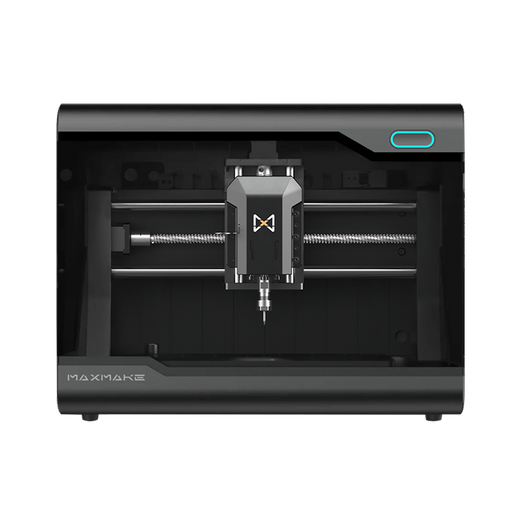
HiMill D1 Desktop CNC Machine
Connect with the MAXMAKE community
Share your projects, discover new ideas, and connect with other makers.
Join Our Community
Share projects, ask questions, connect with makers