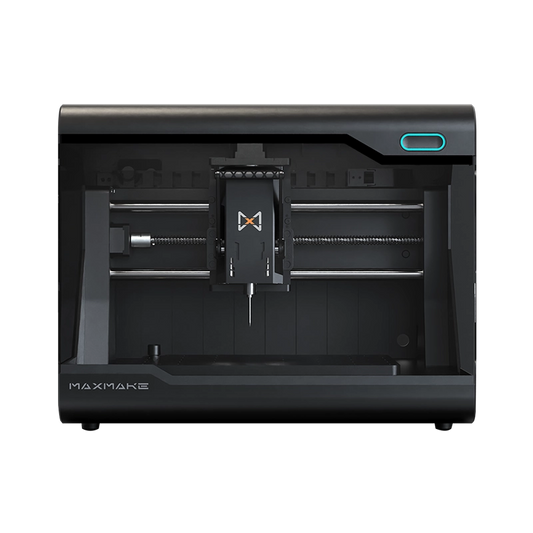
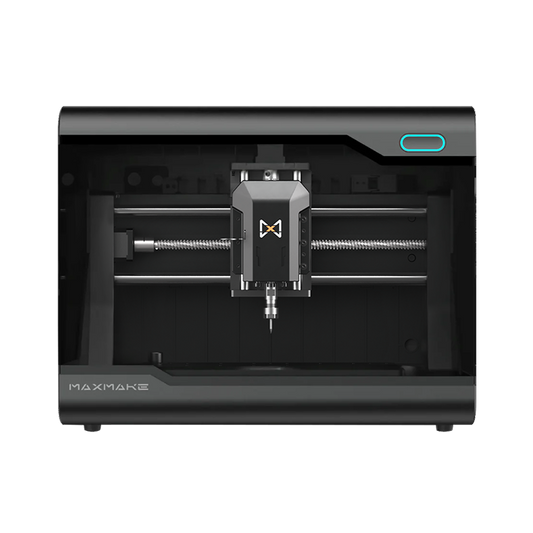
HiMill D1S MillMage Compatible: HiMill D1S Now Works with MillMage CNC Software (by LightBurn)
If you’ve been looking for a HiMill D1S MillMage compatible setup, here’s the practical takeaway: HiMill D1S runs a complete MillMage workflow—from stock setup and toolpaths to simulation, then Control Mode (USB streaming) or export G-code for a stability-first run. No more settling for older GRBL senders like Candle or UGS (Universal G-code Sender). This article covers what MillMage is, why the HiMill D1S + LightBurn pairing matters, and how it compares to Candle/UGS for real projects.

What is MillMage CNC Software (by LightBurn) and Why It Matters — LightBurn MillMage Overview
MillMage is LightBurn’s CNC software—a separate product from LightBurn Laser, built for CNC routers and mills. It combines LightBurn-style design and layout tools with CAM and Control in a single workflow.
Why the LightBurn “brand trust” matters (especially if you’re new to CNC)
People pay for LightBurn because it’s polished and workflow-first. MillMage follows the same philosophy: fewer fragmented steps, better visibility, and a toolchain that feels like a “project workspace” rather than a stack of panels.
The real problem it solves (beyond “sending G-code”)
Traditional GRBL sender workflows can work, but often feel like stitching together multiple tools:
- Design in one place
- Toolpaths in another
- Control/sending in a third
MillMage compresses that chain—and for new users, less workflow friction means fewer mistakes and more finished projects.
Does MillMage work with GRBL controllers?
Per MillMage’s docs, direct control depends on the controller firmware: MillMage connects to machines running supported firmware (such as grblHAL, Duet/RepRap Firmware, and FluidNC).
For a quick “yes/no” on any machine/controller combo, MillMage Compatibility Matrix / Checker can confirm the match.
HiMill D1S + MillMage: Full Compatibility Confirmed (In Real Workflow)
HiMill D1S works with MillMage as a full project workflow—not just a theoretical “it exports G-code” scenario.
Option A — MillMage Control Mode (USB streaming)
Do stock + origin setup, generate toolpaths, run simulation, then use Control Mode with USB streaming (data sent in real time to the controller).
Option B — Export G-code, run via MaxmakeLAB for stability
For a stability-first approach (especially on longer jobs), export G-code from MillMage and use MaxmakeLAB as the sender/execution layer.
What “compatibility” needs to include (safety + control chain)
For desktop CNC—especially metal-capable machines—compatibility can’t just mean “connects once.” It must preserve the control and safety chain you rely on daily, including:
- E-stop behavior (emergency stop as a real safety boundary)
- Homing / limit switches (repeatable reference and collision prevention)
- Clear run-state feedback (running / paused / stopped, and limit-trigger states)
MAXMAKE’s own D1S spec sheet confirms the metal-oriented hardware fundamentals: a cast aluminum base, ball screw-driven motion system, stepper motors, enclosed design, and a 280×200×80mm work area with 82mm clearance—so the machine is built around repeatability and controlled setups.
We validated the workflow end-to-end the way users actually work—stock setup → toolpaths → simulation → Control Mode (USB) / export G-code (offline execution).
Official compatibility levels are determined by the Compatibility Checker (FULL CONTROL / CAM ONLY).
MillMage vs Candle vs UGS: Which Should You Use with HiMill D1S? (MillMage vs GRBL Software)
This isn’t about “trash talking” free tools. Candle and UGS are popular for a reason: free, lightweight, widely documented. The question is what your default workflow should feel like—especially for functional parts or metal projects.
6-way comparison (what users actually care about)
| Comparison Point | MillMage | Candle | UGS |
|---|---|---|---|
| Workflow shape | Design, toolpaths, simulation, and control in one workflow | Simple sender-focused workflow | Classic sender-focused workflow |
| Control path | Control Mode (USB streaming) or export G-code | Works as a workable fallback for G-code sending | Works as a workable fallback for G-code sending |
| Project visibility | Fewer fragmented steps, better visibility | Lightweight, but more split across tools | Lightweight, but more split across tools |
| Best fit | HiMill D1S users who want a polished workflow | Budget-conscious users who only need G-code sending | Budget-conscious users who only need G-code sending |
| Time cost | Lower workflow friction for new users | Free, but time can be expensive | Free, but time can be expensive |
| Bottom-line recommendation | Start here for a modern, cohesive control experience | Workable fallback if budget is tight | Workable fallback if budget is tight |
The part people miss: “free” can be expensive in time. Candle / UGS are free, but the real cost is time—onboarding, settings, troubleshooting, repeated test runs. With functional parts or aluminum work, one mistake wastes material and a full setup cycle.
Bottom-line recommendation for HiMill D1S users
- If you want a control workflow that feels as polished as the machine you bought, start with MillMage on your HiMill D1S.
- If your budget is extremely tight and you just need “it runs G-code,” Candle is a workable fallback—but expect higher learning and trial-and-error cost.
From left to right: MillMage, Candle, UGS.


Why HiMill D1S + MillMage Is Perfect for Metal CNC
Many CNC machines claim software support. What actually matters is whether the hardware + software combo makes metal workflows more predictable.
D1S gives you the hardware foundation
The HiMill D1S product specs emphasize exactly the features metal-oriented desktop CNC buyers look for:
- Cast aluminum base, enclosed build (cleaner, quieter, safer)
- Ball screws with low backlash and <0.01mm repeatability claims
- 250W air-cooled brushless spindle
- 280×200×80mm work area, 82mm clearance
- Stepper motors (open-loop stepper architecture)
MillMage makes the workflow feel controllable
MillMage’s value isn’t just “it can run”—it’s how it structures the workflow:
- Guided stock/origin setup (so fewer steps are left to memory)
- Operations-based toolpath building (Pocket/Profile are quick to create and adjust)
- Simulation before cutting (so you catch mistakes earlier)
- Control Mode for live runs, plus export G-code when you want a stability-first execution path
Two real metal-shop moments where this combo helps
- Aluminum cuts get “heavy” mid-job: if the cut starts sounding sharper or chip evacuation looks worse, MillMage’s feed/spindle controls let you respond right away—far harder to do when your toolchain is fragmented.
- Precision parts punish mistakes: better preview/simulation means you’re more likely to catch an inside/outside profile mistake or wrong depth before you scrap a blank.
Few desktop systems combine a metal-capable platform with a workflow-first control environment this cohesively.
How to Connect HiMill D1S to MillMage (3 Simple Steps) — Setup Guide
Not a full tutorial—just the fastest path to first use:
- Download MillMage from the official LightBurn website (trial is available).
- Connect HiMill D1S via USB and power on the machine.
- In MillMage, complete stock/origin setup, create your Pocket/Profile operations, run simulation, then either:
- run in Control Mode (USB streaming), or
- export G-code and run it via MaxmakeLAB for a stability-first workflow
Watch the full setup video :
FAQ
FAQ 1: Can I cut aluminum and other metals using MillMage on my HiMill D1S?
Yes. The HiMill D1S is positioned as a metal-capable desktop CNC for functional parts, and MillMage helps by keeping the workflow more connected—from stock/origin setup and toolpaths to simulation and job execution. For everyday projects in aluminum and other softer metals (such as brass), the D1S + MillMage workflow is a practical combination for repeatable results.
FAQ 2: Is MillMage free? Do I need to pay extra to use it with HiMill D1S?
MillMage pricing and licensing follow LightBurn’s official policy and can change over time. The key point for HiMill D1S users is that you don’t need extra hardware to start using MillMage and validate the workflow. For the latest pricing, refer to the official LightBurn pages.
FAQ 3: Do I need to flash new firmware on my HiMill D1S for MillMage?
No. Based on the workflow described in this article, you can connect the HiMill D1S via USB and start running jobs without flashing firmware.
FAQ 4: Will HiMill D1S support future MillMage updates?
MAXMAKE keeps the HiMill D1S software ecosystem usable and the workflow reliable. MillMage is actively developed by the LightBurn team, so new features and updates will continue to roll out over time. As with any production workflow, it’s a good idea to follow official release notes and keep a stable version available for critical jobs.
Final Summary (HiMill D1S + MillMage compatible)
What “HiMill D1S MillMage compatible” means in practice is simple: desktop metal CNC users can finally pair a metal-capable machine with a control workflow that feels modern and cohesive. MillMage brings LightBurn’s workflow DNA into CNC; HiMill D1S provides a hardware platform (ball screws, enclosed build, metal-oriented specs) that benefits from better visibility and control.
- Download / trial MillMage from LightBurn and start testing the workflow.
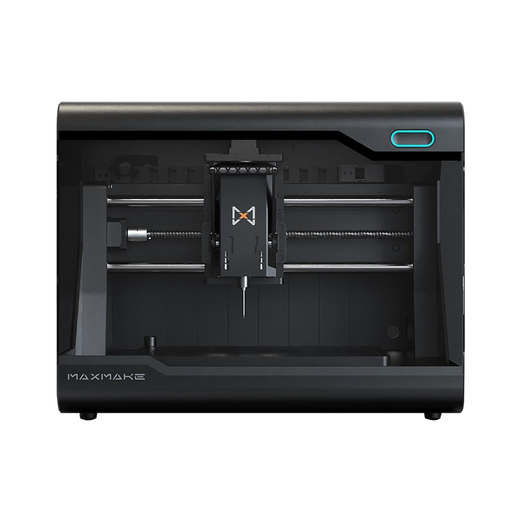
HiMill D1S - Pro Desktop CNC with Ball Screws & QTC
Connect with the MAXMAKE community
Share your projects, discover new ideas, and connect with other makers.
Join Our Community
Share projects, ask questions, connect with makers