CAD vs. CAM: What is the Actual Difference? Demystifying the CNC Software Chain

Preface
Throughout the entire CNC machining process, CAD and CAM are the core software components that run through the "Design - Manufacturing" cycle. They are also the two most easily confused concepts for beginners—many mistakenly assume the two are an "either-or" choice, or even feel that "knowing how to use one is enough." In reality, the two share an inseparable, upstream-downstream relationship where neither can be dispensed with. One manages "Design," the other manages "Manufacturing," and together they constitute the "Software Brain" of CNC machining.
In this guide, we will thoroughly explain the differences between CAD and CAM across four dimensions: underlying logic, core functions, operational differences, and collaborative workflows. Simultaneously, we will deconstruct the working logic of the entire CNC software chain, enabling beginners to quickly distinguish and proficiently utilize them, avoiding machining errors caused by software confusion.
I. Establishing Core Cognition: The Fundamental Roles of CAD and CAM
🎨 CAD: Computer-Aided Design — Responsibility: "Getting the Design Right"
The core mission of CAD (Computer-Aided Design) is to transform creative ideas and requirements into precise digital models. It is the "front-end foundation" of CNC machining. Simply put, CAD is a "high-precision digital drafting tool on your computer." It is more accurate and efficient than traditional paper and pencil drawing, and its core value lies in the "precision and editability of the design."
Whether you are designing simple 2D shapes (such as signage or wooden sign contours) or complex 3D models (like irregular ornaments or precision mechanical parts), you must first complete the design through CAD to define dimensions, structures, and aesthetics before entering the subsequent machining phases. It does not involve any "machining instructions"; it focuses solely on "building the model correctly and defining the dimensions correctly."

🛠️ CAM: Computer-Aided Manufacturing — Responsibility: "Making the Part Right"
The core mission of CAM (Computer-Aided Manufacturing) is to take the digital model designed in CAD and translate it into machining instructions that the CNC machine can recognize and execute. It is the "bridge" between design and physical manufacturing. Simply put, CAM is like "writing the operation manual for the CNC machine." Its core value lies in "enabling the machine to understand the design for precision machining."
CAM does not require redesigning the model. Instead, based on the model file exported from CAD, it plans toolpaths, sets machining parameters (speeds, depths, and tool types), and ultimately generates G-code instructions—the language the CNC machine understands—to control cutting, carving, and milling operations directly.

II. Core Deconstruction: CAD vs. CAM Dimension Analysis
Many confuse the two because they fail to grasp the core difference between "Design" and "Manufacturing." Below, we break down the differences across 6 key dimensions in plain language, avoiding the use of jargon while balancing professional depth and readability:
| Comparison Dimension | CAD (Computer-Aided Design) | CAM (Computer-Aided Manufacturing) |
|---|---|---|
| Core Mission | Design digital models; define "What to build" and "How it looks." | Plan machining solutions; define "How to machine" and "What tools to use." |
| Core Functions | 2D/3D drafting, modeling, dimensioning, structural optimization, model editing. | Toolpath planning, parameter setup, machining simulation, G-code generation. |
| Operational Focus | Focus on dimensional accuracy, structural rationality, and aesthetic appearance. | Focus on machining safety, efficiency, and precision; avoiding collisions and lost steps. |
| Output Files | Model files (e.g., SVG, STL, STEP, DXF, etc.) | Machining instructions (G-code), toolpath simulation files. |
| Core Users | Product Designers, Structural Engineers, CNC Beginners (modeling). | CNC Operators, Machining Technicians, Factory Machinists. |
| Common Misconceptions | Believing "drawing is the end," ignoring the compatibility between design and machining. | Believing "importing any model automatically works," ignoring parameter configuration. |
Supplement: The Ultimate Analogy
- CAD is the "Architect": Responsible for drawing the blueprints, defining dimensions, structure, and style to ensure the plan is flawless—but not for direct construction.
- CAM is the "Construction Captain": Takes the blueprints and plans the construction steps (which tools, where to start, speed). Directs the workers (CNC machine) to build according to the plan.
- The Relationship: Without CAD blueprints, CAM has no basis for machining; without CAM planning, CAD drawings remain "pictures on a screen" and never become a physical reality.
III. The Complete CNC Software Workflow: CAD → CAM → CNC Machine
Understanding the difference is about grasping their collaborative logic in CNC machining. The software chain is a "closed-loop linkage," and each part is indispensable. Beginners can refer to this workflow to clarify what to learn and use:
1. Initial Design (CAD Phase): Open your CAD software. Based on machining needs, draw a 2D shape (e.g., wooden plaque contour) or build a 3D model (e.g., irregular ornament). Label precise dimensions (tolerance control within ±0.01mm). Check if the structure is CNC-friendly (avoiding overly complex "dead corners"). Once complete, export in a universal format (e.g., SVG, STL).
2. Transition (CAD → CAM): Open your CAM software and import the CAD-exported model. Confirm the model has no missing data or damage. Position the model within the machining area.
3. Machining Planning (CAM Phase): Set machining parameters in CAM. Select tool types (e.g., End Mills, Engraving Bits), set machining depth and speeds, and plan toolpaths (avoiding collisions). Then, perform a **Machining Simulation** to troubleshoot path errors or collision risks.
4. Execution (CAM → CNC): Once simulation is verified, CAM generates the **G-code** instructions. Import the code into the CNC machine and start it. The machine follows the instructions to complete machining, transforming the digital design into a physical workpiece.

Critical Reminders for Beginners:
Common Myth: Many beginners think they can import a CAD file directly into a CNC machine. The machine cannot read CAD files; it only recognizes **G-code**. You must go through CAM "translation" to generate G-code.
Key Focus: When designing in CAD, you must consider CAM manufacturability—avoid designs that are smaller than the tool diameter or have inaccessible dead corners, otherwise, CAM cannot plan a valid path, leading to machining failure.
IV. Extension: Common CAD and CAM Software (Tailored for different needs, helping beginners avoid pitfalls)
1. Common CAD Software (Beginners should prioritize easy-to-learn options)
-
Beginner Entry: AutoCAD (The first choice for 2D drafting, simple and easy to operate, suitable for most desktop-grade CNC 2D machining); SketchUp (Entry-level 3D modeling, suitable for simple irregular models).

-
Professional Advanced: SolidWorks (Industrial-grade 3D modeling, suitable for complex part design); Fusion 360 (Integrated CAD/CAM, which beginners can also pick up quickly).


-
Niche & Convenient: Inkscape (Free 2D drafting, suitable for 2D graphic design for laser engraving and simple milling).
2. Common CAM Software (Beginners should prioritize integrated, no-debugging options)
-
Beginner Entry: MaxmakeLab (Specially designed for desktop CNCs, integrated CAD/CAM, no complex debugging required, and perfectly compatible with native equipment); VCarve Pro (Focuses on 2D/2.5D carving with a simple and clean interface).
-
Professional Advanced: Fusion 360 (Integrated CAD/CAM with industrial-grade toolpath planning, suitable for complex 3D machining); Mastercam (Industrial-grade CAM, supports multi-axis CNC, and offers comprehensive features).
*Note: MaxmakeLab’s CAM functionality is currently in development and is expected to meet users very soon. -
Niche & Convenient: MeshCAM (Focuses on 3D model processing with simple toolpath planning, ideal for beginners performing 3D carvings).


V. Beginner Pitfalls: 3 Common CAD/CAM Confusion Issues
-
Mistake 1: "I can choose either CAD or CAM." — False! They share an upstream-downstream relationship. Without CAD design, CAM has no basis for machining; without CAM planning, CAD drawings cannot be physicalized. They must be used together.
-
Mistake 2: "I can design and draw directly in CAM." — False! The core of CAM is "machining planning." Drawing and modeling are the exclusive functions of CAD. CAM can only adjust the model's position and orientation; it cannot redesign the model itself.
-
Mistake 3: "Importing an exported CAD model into CAM means I'm ready to machine." — False! After importing, you must first check the model's compatibility (e.g., whether the dimensions fit within the machine's travel/stroke), set machining parameters, and perform simulation verification. Otherwise, it is extremely easy to experience tool collisions, lost steps, or scrapped workpieces.
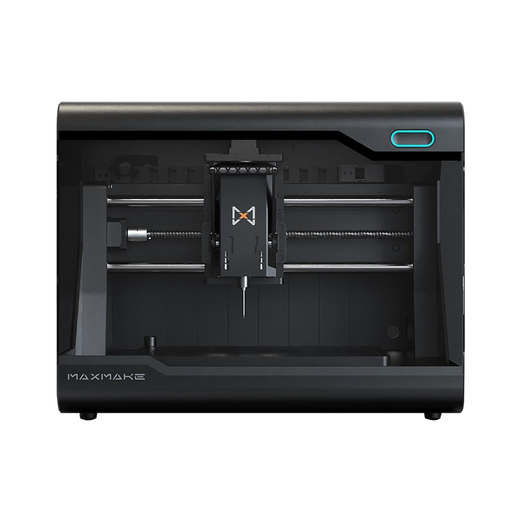
HiMill D1S - Pro Desktop CNC with Ball Screws & QTC
Connect with the MAXMAKE community
Share your projects, discover new ideas, and connect with other makers.
Join Our Community
Share projects, ask questions, connect with makers